🌐 中文 English
Introduction
Following QQ’s official announcement of directly integrating the OpenClaw QQ bot, the WorkBuddy platform software was launched to help users quickly deploy a personal QQ OpenClaw bot assistant. The implementation steps are as follows.
Deployment Steps
1. Download WorkBuddy
Official website: https://copilot.tencent.com/work/. Click on the Windows x64 option in the image below to download.
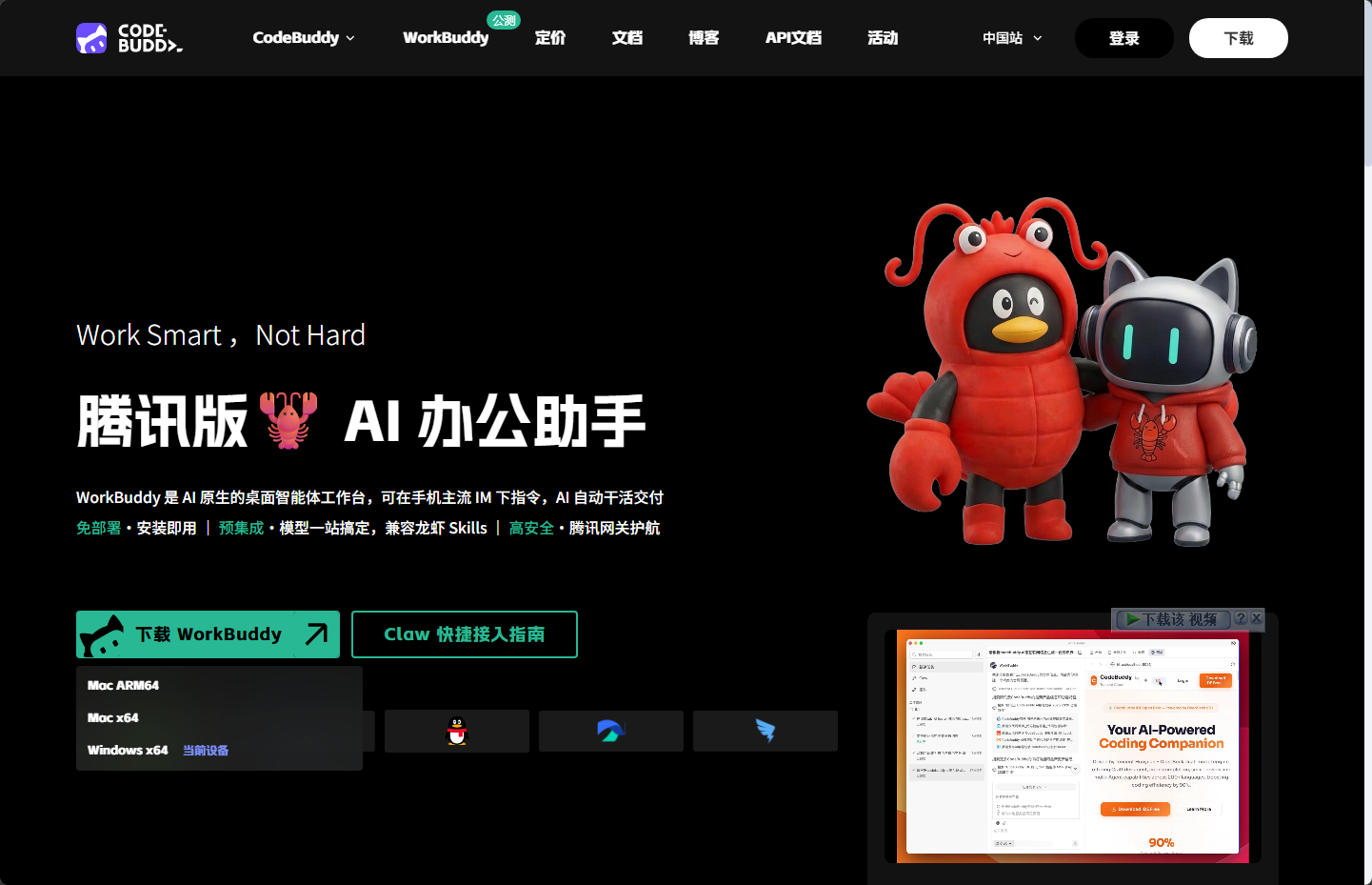 For the installation package, simply proceed through the steps by clicking ‘Next’.
2. Register the QQ Bot
The OpenClaw QQ Bot Assistant is the latest QQ bot assistant supported by Tencent. Therefore, it must be added on the following platform interface. Currently, directly creating a bot via the QQ Open Platform does not support WorkBuddy integration and will result in an error. The URL is:
https://q.qq.com/qqbot/openclaw/login.html
Scan the QR code to log in; it will automatically redirect to create an administrator account (if you haven’t used this platform before). At this step, select the currently logged-in account as the administrator and enter your ID number, name, and other information. Then, create the bot on this page, as shown:
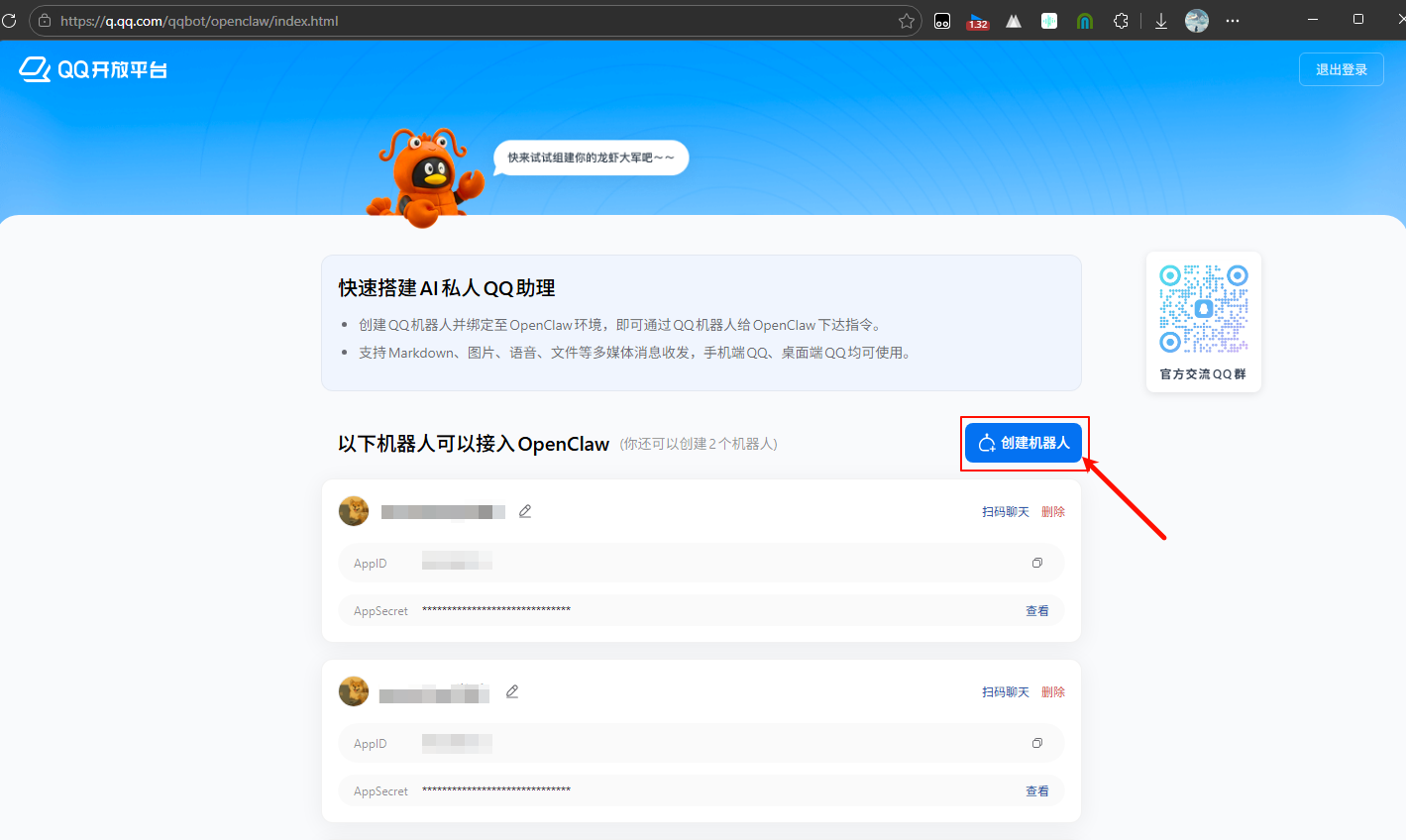
3. Obtain Bot Information
Retrieve the AppID and AppSecret of the created bot. Remember these two pieces of information, as they will be needed in WorkBuddy.
4. Configure WorkBuddy
Open the Claw settings:
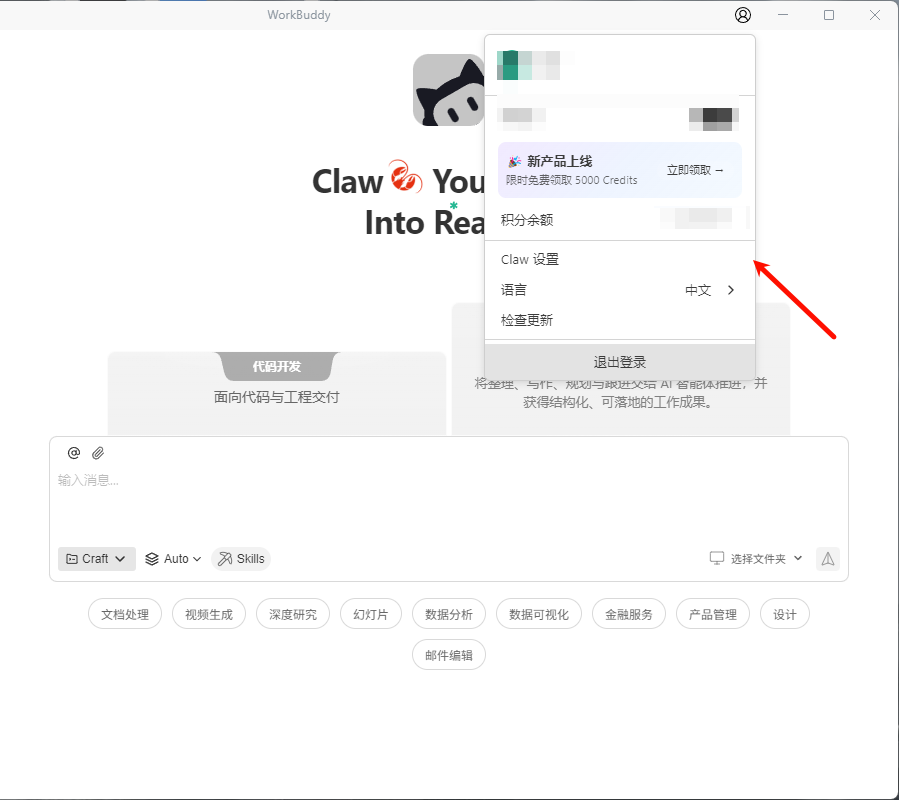 Click on the configuration for QQ Bot Integration, select ‘Use URL Callback’, enter the previously obtained AppID and AppSecret, and click Register:
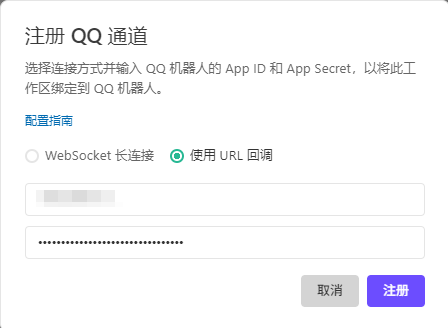 A success message will appear below, followed by a callback URL (a string of web address). Click to copy this URL.
5. Configure the QQ Open Platform
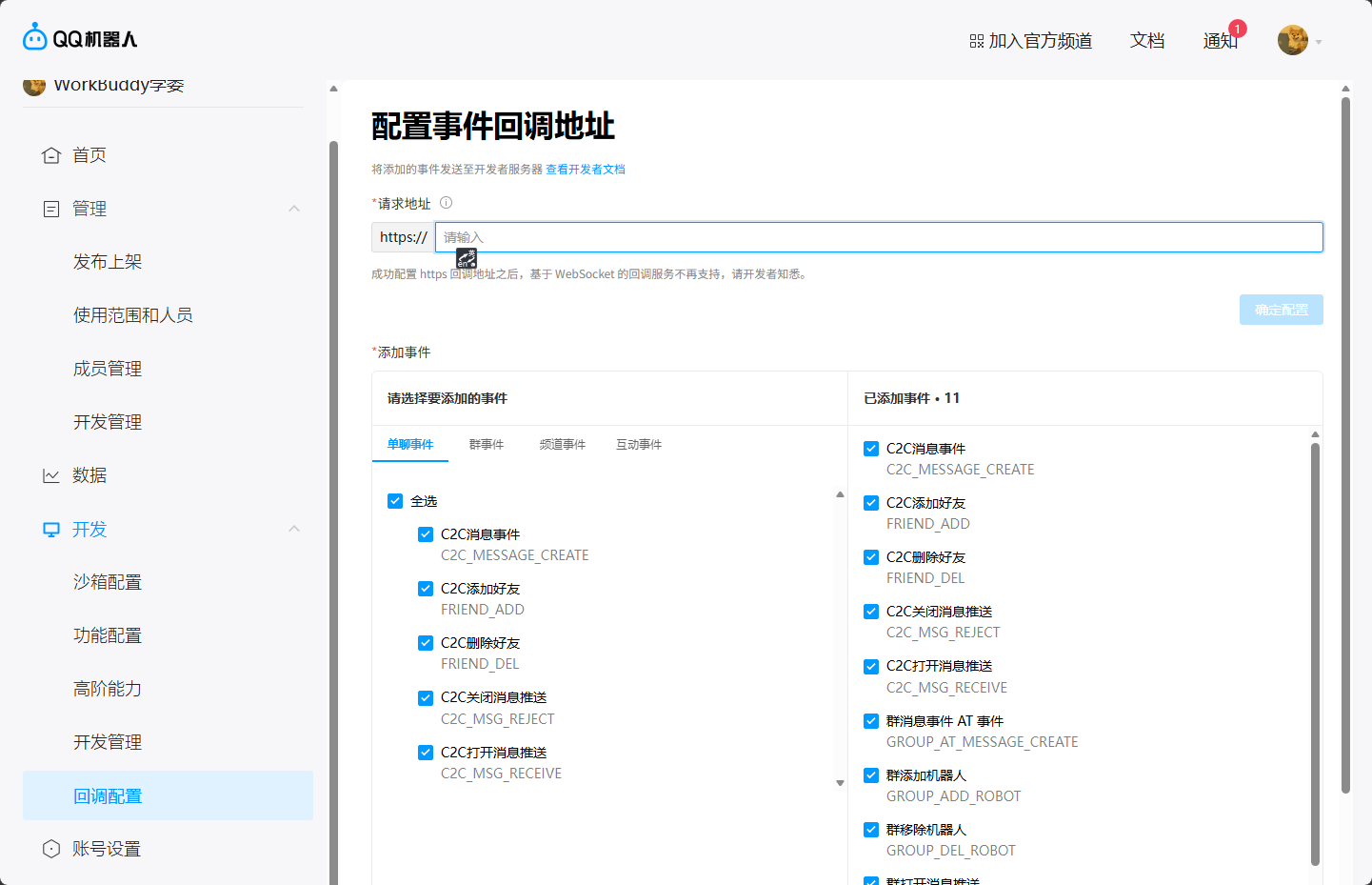
In the QQ Open Platform, configure the callback by pasting the copied callback URL into the ‘Request Address’ field. For the events below, it is recommended to check all chat-related options (After configuration, be sure to click ‘Confirm Configuration’, otherwise the settings will not take effect), as shown:
6. The QQ Claw Bot Assistant is Ready for Use
After this, it can be used on QQ. You can send a message on QQ to test if it’s successful. If successful, the Claw bot will reply.
