🌐 中文 English
This chapter mainly introduces the deployment and usage of OpenManus. (Please deploy and use OpenManus under an external network, otherwise issues such as inability to install dependencies and use Google search may occur) OpenManus Github address: https://github.com/mannaandpoem/OpenManus
Introduction
Following the explosive popularity of the world’s first general-purpose intelligent agent AI, Manus, last week, its invitation codes have become extremely scarce. Therefore, five experts spent three hours replicating an open-source general-purpose intelligent agent AI and named it OpenManus, hoping to help more people access a general-purpose intelligent agent. In this chapter, I will introduce the deployment and usage of OpenManus.
Deploying OpenManus
Installing Conda Dependencies
Using OpenManus requires installing conda dependencies, so we first need to set up a conda environment. I have mentioned this in a previous article, so I won’t elaborate further here.
Installing OpenManus and Its Dependencies
Open the terminal and enter the following commands:
conda create -n open_manus python=3.12
conda activate open_manus
After the environment configuration is complete, enter the following command to download OpenManus:
git clone https://github.com/mannaandpoem/OpenManus.git
Once the download is finished, enter the following command to install the conda dependencies for OpenManus:
cd OpenManus
pip install -r requirements.txt
Installing the Playwright Browser
Using OpenManus requires installing the Playwright browser, so we need to install it first. Enter the following command:
playwright install
Wait for the download to complete before proceeding to the next step.
Configuring OpenManus
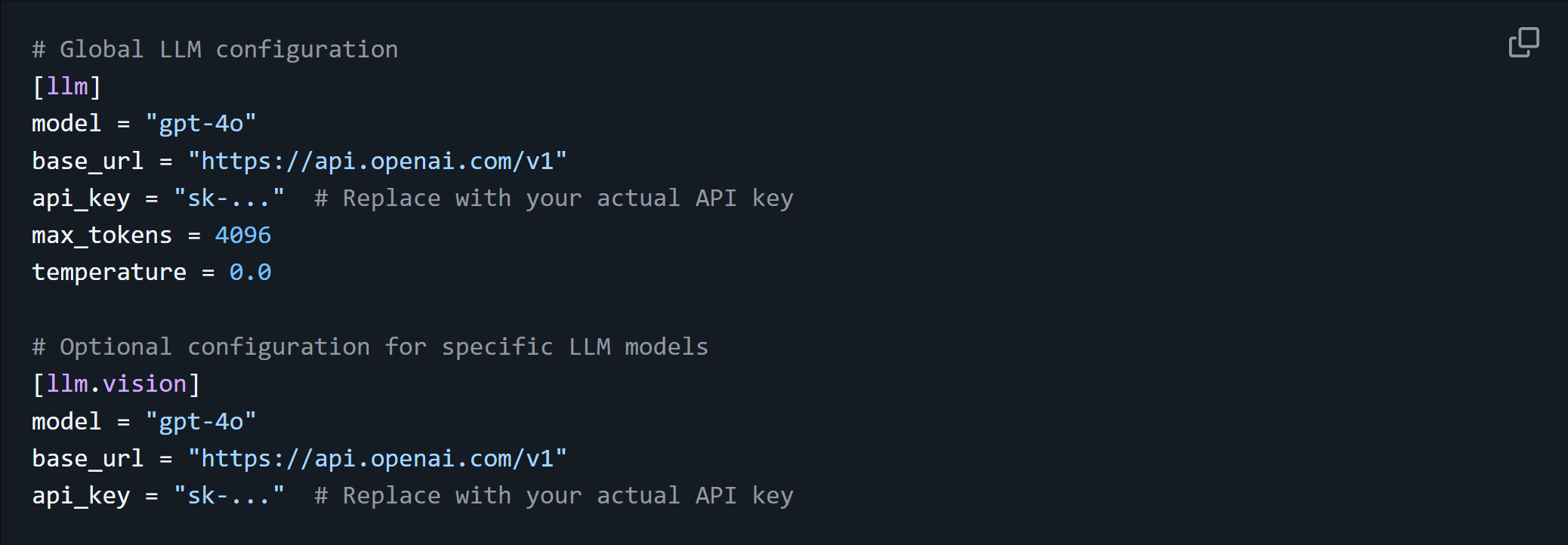
Open the config folder in the downloaded project file OpenManus, make a copy of the config.example.toml file, and rename it to config.toml. Then open the config.toml file and modify its content according to the project requirements as follows:
 Note:
Note: model, base_url, and api_key need to be configured based on your actual situation.
Starting OpenManus
Open the terminal at the previous location and enter the following command:
python main.py
If the following information appears, it means OpenManus has started successfully.
INFO     [browser_use] BrowserUse logging setup complete with level info
INFO     [root] Anonymized telemetry enabled. See https://docs.browser-use.com/development/telemetry for more information.
Enter your prompt (or 'exit' to quit):
Below this, enter the question you want to ask, then press Enter to receive OpenManus’s response.
Note: During usage, OpenManus may invoke the browser and open web pages. This is the normal behavior of an intelligent agent AI searching for information. Please do not close the web pages, as doing so may cause OpenManus to skip the information it is currently searching for.
Summary
This chapter mainly introduced the deployment and usage of OpenManus, hoping to help you get started with using OpenManus.
