🌐 中文 English
This article mainly introduces how to switch your computer to the Ubuntu system.
Introduction
As a computer’s usage time increases, the performance of a Windows PC gradually declines, and its efficiency decreases. Therefore, you can switch the computer to the Ubuntu system to improve its efficiency, turning it into a server or remote computer and giving it a new lease on life. Compared to CentOS, Ubuntu has a more visually appealing UI, which is why I chose the Ubuntu system.
Preparations
The Ubuntu system version I chose is 24.04 LTS. According to the official minimum requirements:
- The processor clock speed should be at least 2 GHz, with at least two cores (you can check this using Task Manager).
- A minimum of 4 GB of RAM.
- You can install a dual-boot system, but it requires at least 25 GB of free hard drive space.
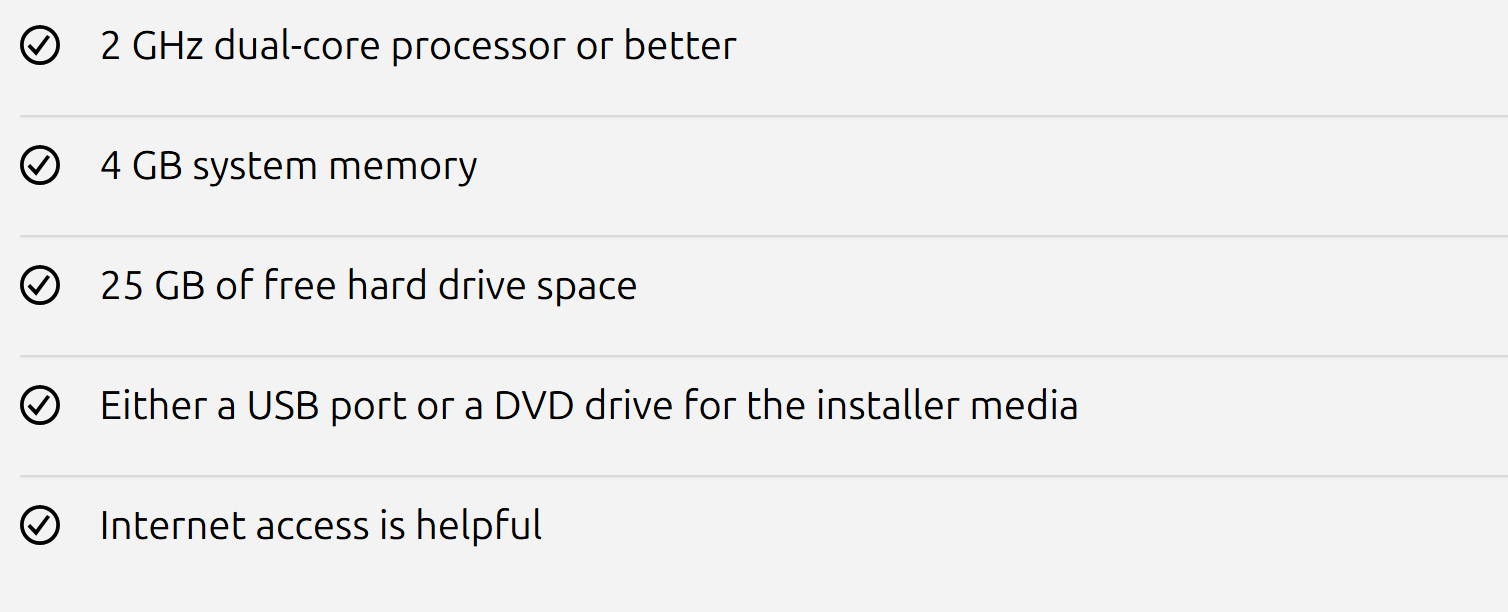 Here, I use a USB drive for installation because it’s fast and convenient, and the USB drive can be kept for future use after installation.
Installing the System
- Download the Ubuntu system image file.
Open the official download page.
Click the
Download 24.04 LTSbutton in the image to download the corresponding ISO image file.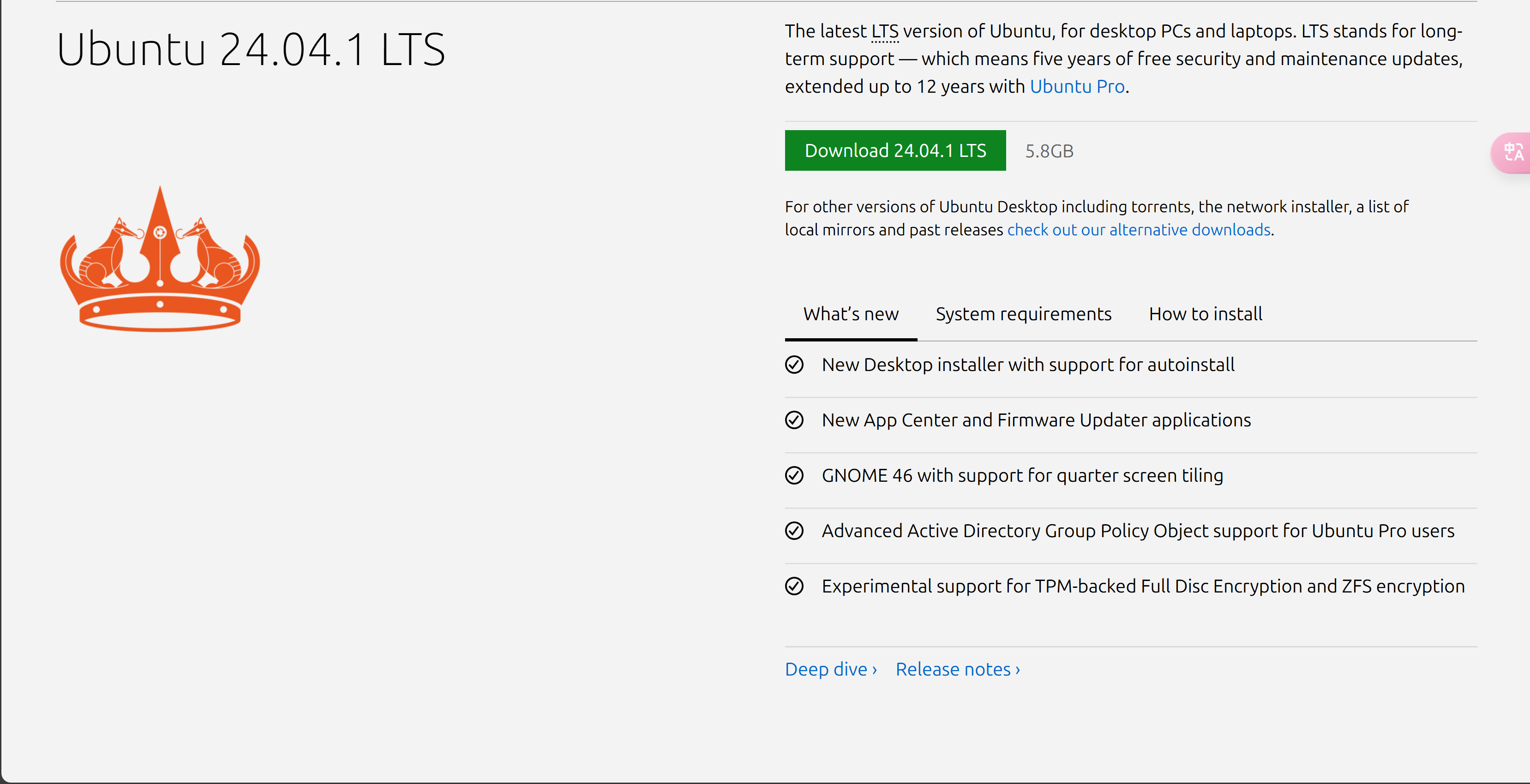
- Download the software to create the installation USB drive.
Open the balenaEtcher official download page.
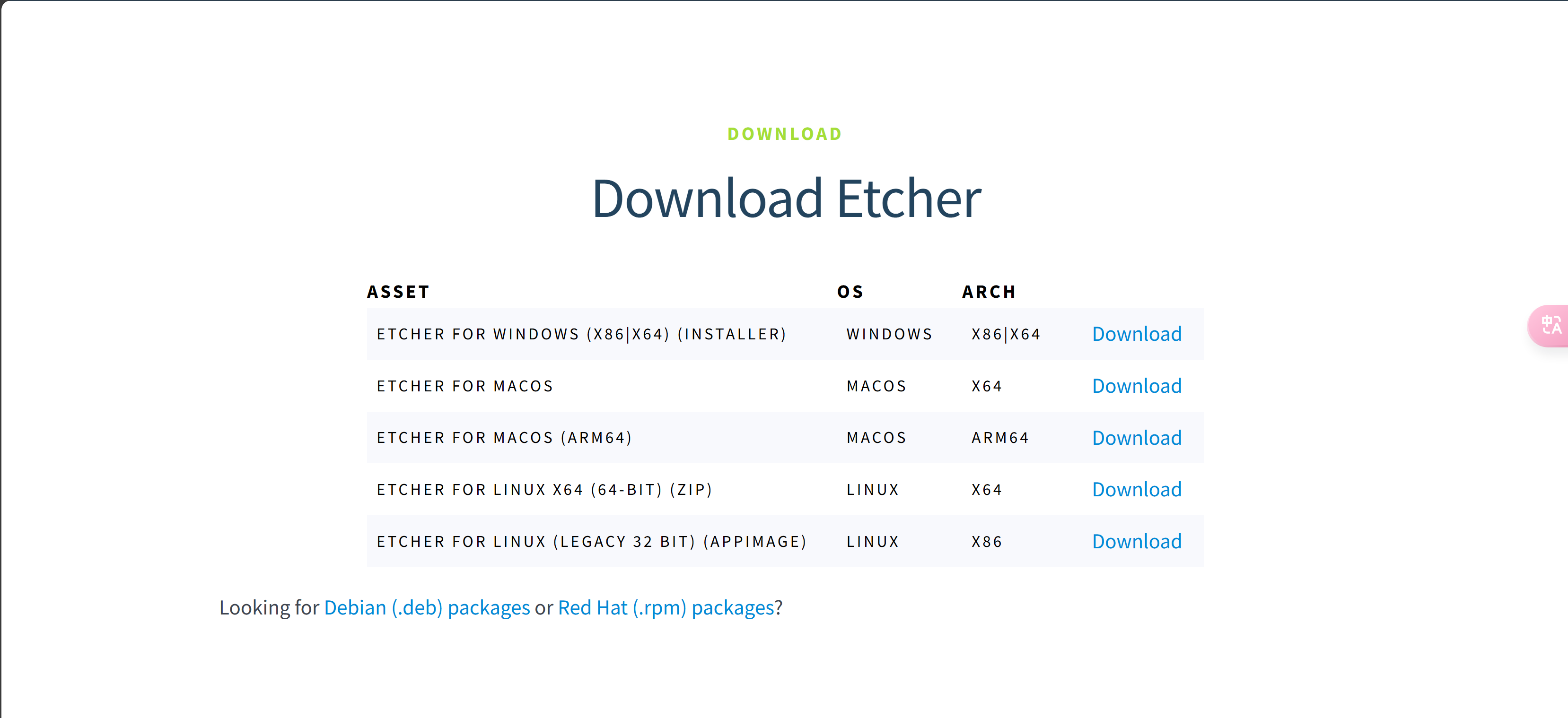 I am using a Windows system, so I selected the Windows version of balenaEtcher for download and installed it afterward.
 - Create the USB drive.
Open the balenaEtcher software.
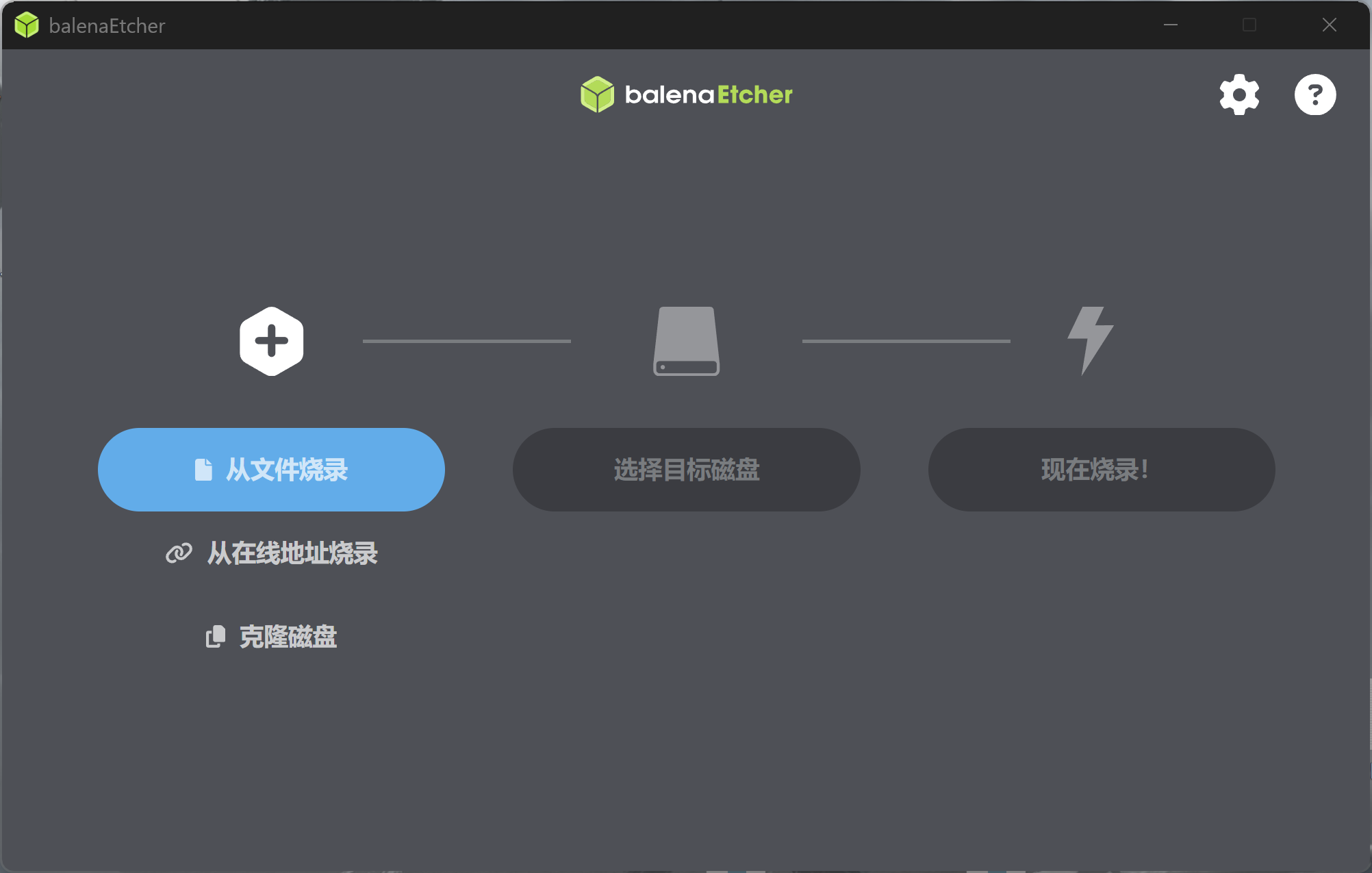 Click
Click Flash from file, select the downloaded Ubuntu system ISO image file, choose the target disk as the corresponding USB drive, click Flash, wait for the flashing to complete, and then eject the USB drive. - Install the system.
Insert the USB drive into the computer where you want to install Ubuntu, power it on, and use the shortcut key (which varies by computer model and brand; check the official website of your computer’s brand) or advanced startup to enter BIOS settings. Set the USB drive as the first boot option, save and exit. The system will then restart the computer and enter the USB installation interface. Select
Try and Install Ubuntuto install the system, then follow the prompts to complete the installation. After installation, the computer will automatically restart, and you can then enter the system.
FAQ
If you choose to connect to the network during installation, the installation time may be longer because Ubuntu’s mirror sources are not directly accessible in China. You can choose not to connect to the network and manually set the mirror source afterward, which will significantly shorten the installation time.
Summary
This article mainly introduced how to switch a computer from Windows to Ubuntu. I hope it helps you.
